
The quick answer
Choose a GIF when the bug is a short, silent interaction that benefits from repeating. Choose video when the report needs audio, a longer sequence, or several connected actions. Choose a PNG when one still state shows the entire problem.
Compare the three formats
| Format | Best for | Tradeoff |
|---|---|---|
| GIF | A short, silent action that is useful to see more than once | File size grows with the capture area, duration, and visual change; no audio |
| Video | A longer workflow, several connected steps, or sound | The viewer has to open and control a player |
| PNG | A single error message, layout problem, or final state | It cannot show timing, movement, or the action that caused the problem |
Choose a GIF when
- The problem appears after one or two quick actions.
- Timing or movement matters, but audio does not.
- The viewer should be able to scan the evidence directly inside an issue or document.
- You can crop the recording to one small interface region.
Choose video when
The screen recorder built into macOS opens with Shift-Command-5 and saves the recording as a video. That is a better starting point when the report genuinely needs length or sound rather than a compact loop.
- The reproduction path is too long to understand as a repeating loop.
- Narration, system audio, or microphone audio is part of the evidence.
- Several windows or stages need to stay connected in one recording.
- You need editing, chaptering, or detailed playback controls.
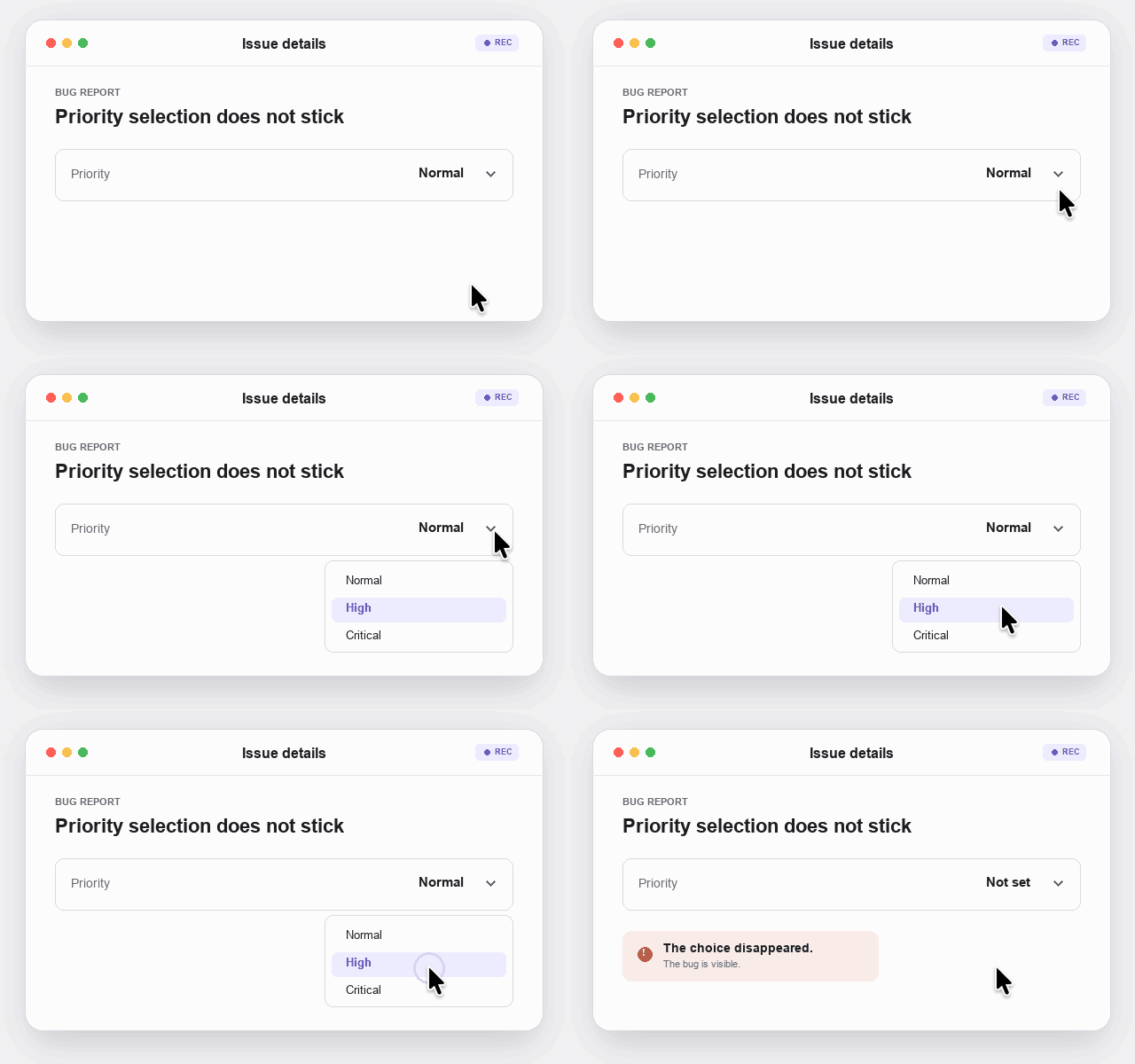
Make a GIF that helps someone reproduce the bug
- Frame the relevant control
Include enough context to identify the app and state, but exclude unrelated windows and private data.
- Show one path
Begin immediately before the action, perform it once, and pause briefly on the failure.
- Add the missing facts
Write the exact steps, expected result, actual result, app version, and macOS version beside the GIF.
A GIF is evidence, not the whole report
The animation shows what happened, but searchable text tells a maintainer how to repeat it. Pair the file with a concise title and written steps instead of making the viewer infer every detail from the recording.
GifJot creates the file locally. Once you upload it to GitHub or another service, that destination controls access to the copy you shared.
Sources
- Apple: How to record your Mac screenApple documents the built-in Shift-Command-5 video workflow.
- GitHub: Attach filesGitHub documents supported issue attachments and their limits.
- GifJot on GitHubSee GifJot's current GIF, silent MP4, and PNG capture workflow.