 Get the beta
Show it.Don’t explain it.
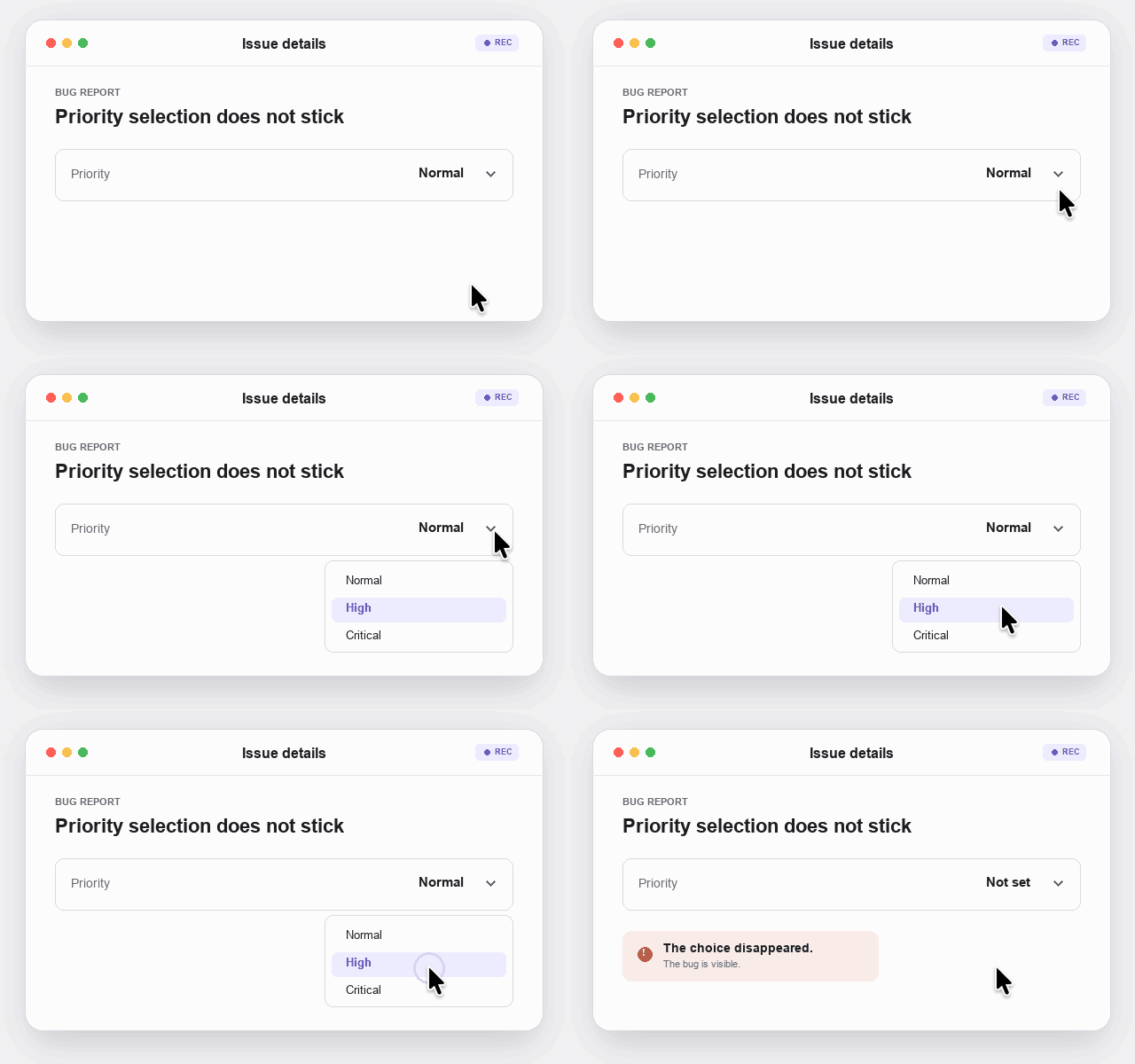
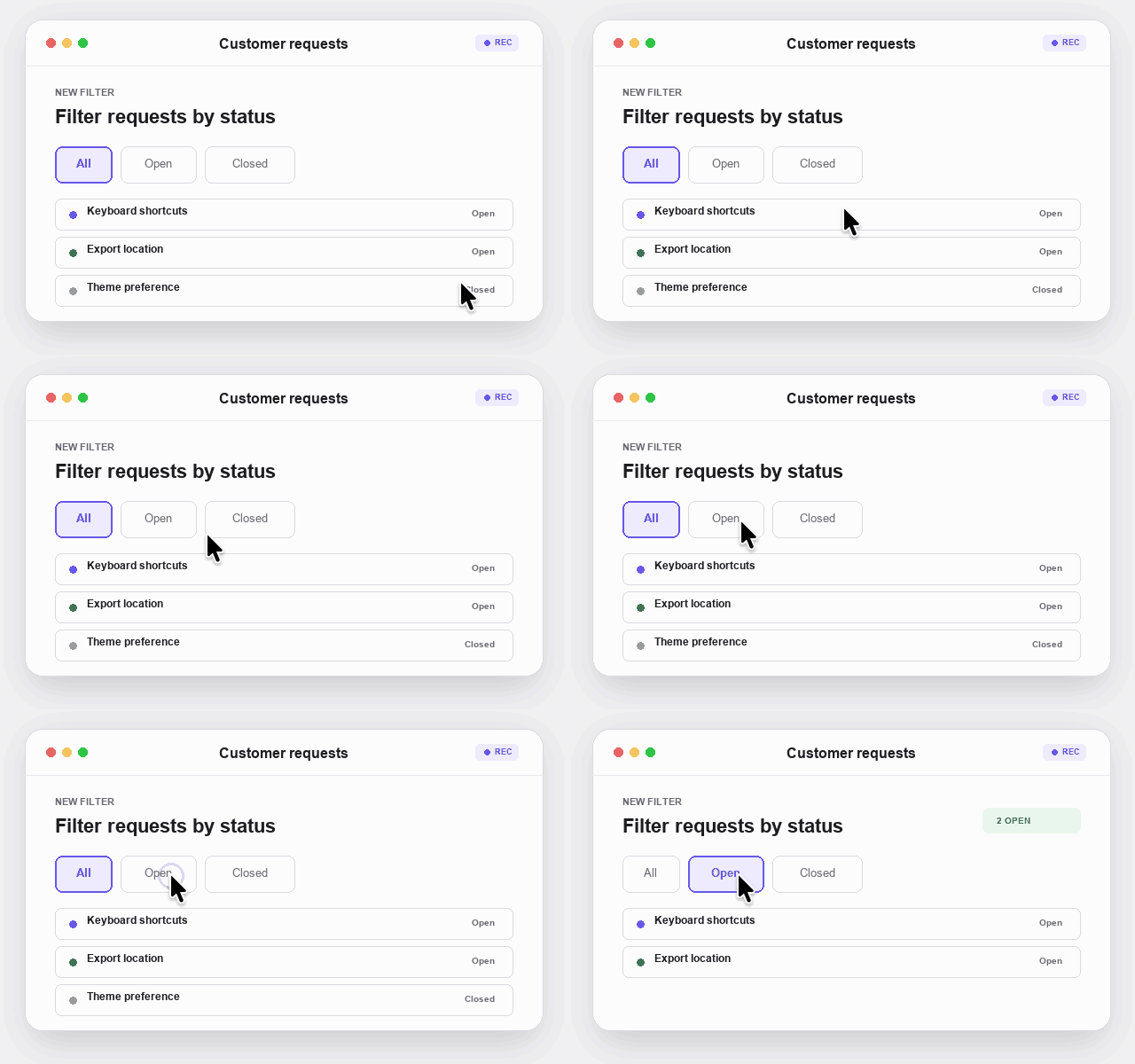
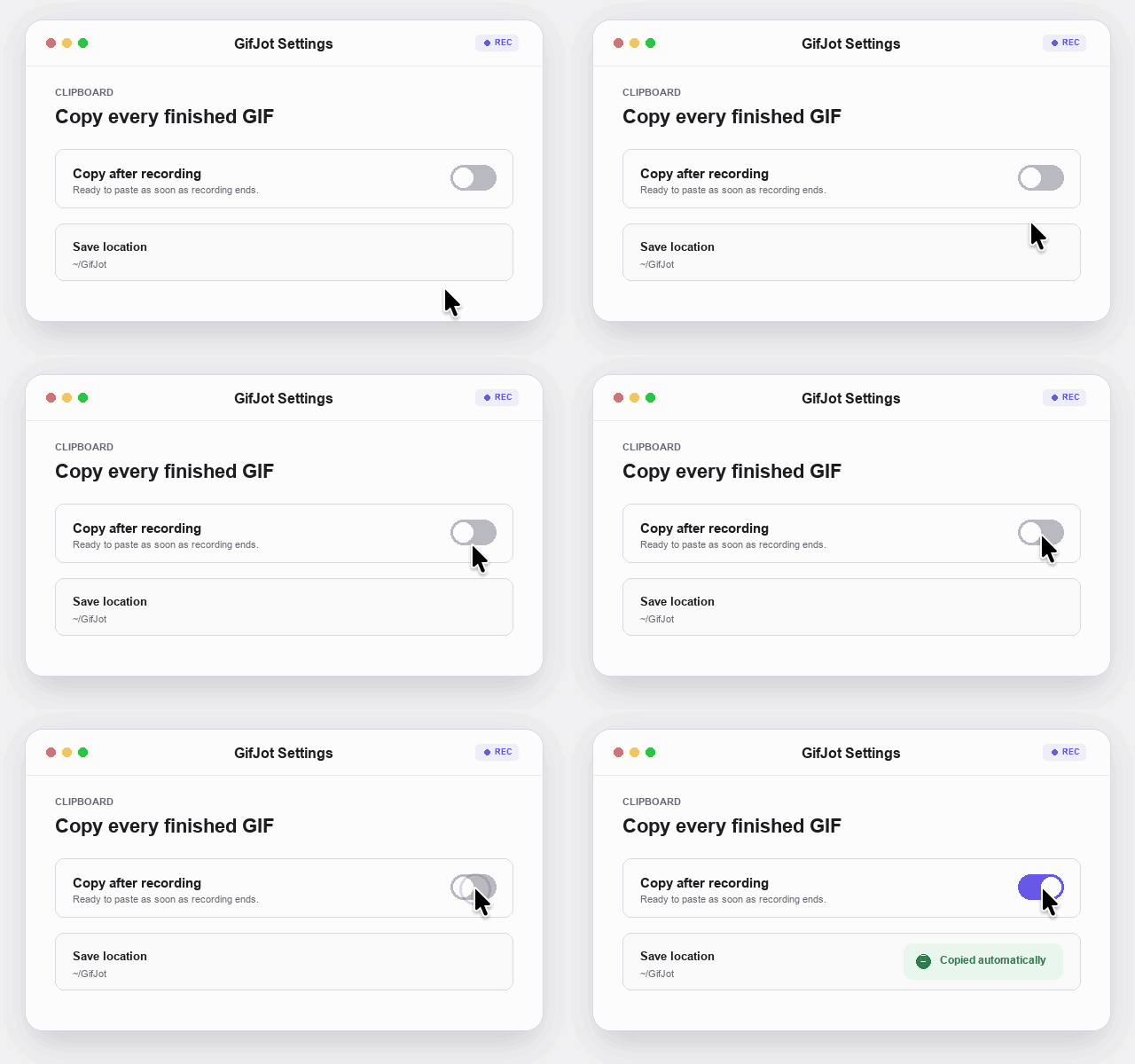
Capture a selected area of your Mac as a GIF, silent MP4, or PNG. Saved locally. Ready to paste.
Paid Mac App Store release planned.

GIFMP4PNG
Native Mac capture. No account. No watermark.
No account
No uploads
No watermark
Local processing
A GIF, MP4, or PNG in three steps.
GifJot stays in the menu bar until you need it. New to screen recording? Read the step-by-step Mac GIF recording guide.
- 01
Choose
Choose GIF or MP4, press ⌥⌘G, then drag around what matters. Use ⌥⌘S for a PNG.
- 02
Capture
Record a short loop or freeze a still. Keep the same frame when you need another take.
- 03
Paste or Jot
Save locally, copy when you want, or open Jot to mark up the result.
Keep the frame. Change the answer.
Repeat Last Area remembers the region you just used. Start another adjustable GIF or MP4 from it, or snap a PNG from the same place without drawing the box again.
When the capture is done, Jot is a primary action—not a hidden option—with Again and Show in Finder beside it.
Made for quick explanations.
Enough motion to make the point, without sending a whole video.
Your screen stays on your Mac.
GifJot creates GIFs, MP4s, and PNGs locally. Its only network request checks GitHub Releases for a signed update; captures and usage data never leave your Mac.
Read the privacy statement
Ready when words are not.
Free during public beta. Paid Mac App Store release planned.
Current release: v0.2.1 · macOS 14+ · Apple silicon