
The quick answer
GitHub supports GIF files in issue descriptions and comments. Drag the GIF into the text box, paste it from your clipboard, or use the attachment control, wait for GitHub to insert the file link, then submit the issue or comment.
GitHub's image limit is 10 MB. Files uploaded to a public repository are accessible without authentication, so remove private information before attaching the capture.
Check your GIF against GitHub’s size limit
Choose a GIF below to see whether it is under GitHub’s documented 10 MB limit. The check happens on your device, so the file never leaves your browser.
Record a useful GIF with GifJot
- Start one step before the bug
Put the app in a clean starting state so the viewer can see what triggers the problem.
- Select only the relevant area
Press Option-Command-G and draw a tight box around the control, message, or panel that changes.
- Perform the action once
Record the shortest path to the failure, pause on the incorrect result, and stop.
- Copy the finished GIF
Use GifJot's Copy action so the capture is ready to paste into GitHub.
Attach the GIF to the issue
- Open the issue form or a comment
Create a new issue, edit its description, or place the cursor in an existing issue comment.
- Add the GIF
Paste the copied GIF or drag the saved file into the text box. GitHub uploads it and inserts a link into the Markdown.
- Preview before submitting
Confirm that the animation shows the intended area and does not reveal names, email addresses, tokens, or customer data.
Copy this GitHub bug report template
## What happened
Describe the problem in one or two sentences.

## Steps to reproduce
1.
2.
3.

## Expected result
Describe what should have happened.

## Actual result
Describe what happened instead.

## Environment
- App version:
- macOS version:

## GIF
Drag or paste the GIF here.
Keep the attachment small and safe
- Capture a smaller region instead of shrinking an entire desktop recording.
- Show one problem per GIF and stop as soon as the result appears.
- Use a PNG when a single state explains the bug.
- Use test data and close unrelated windows before recording.
- Treat a public-repository attachment as public, even though GifJot created the file locally.
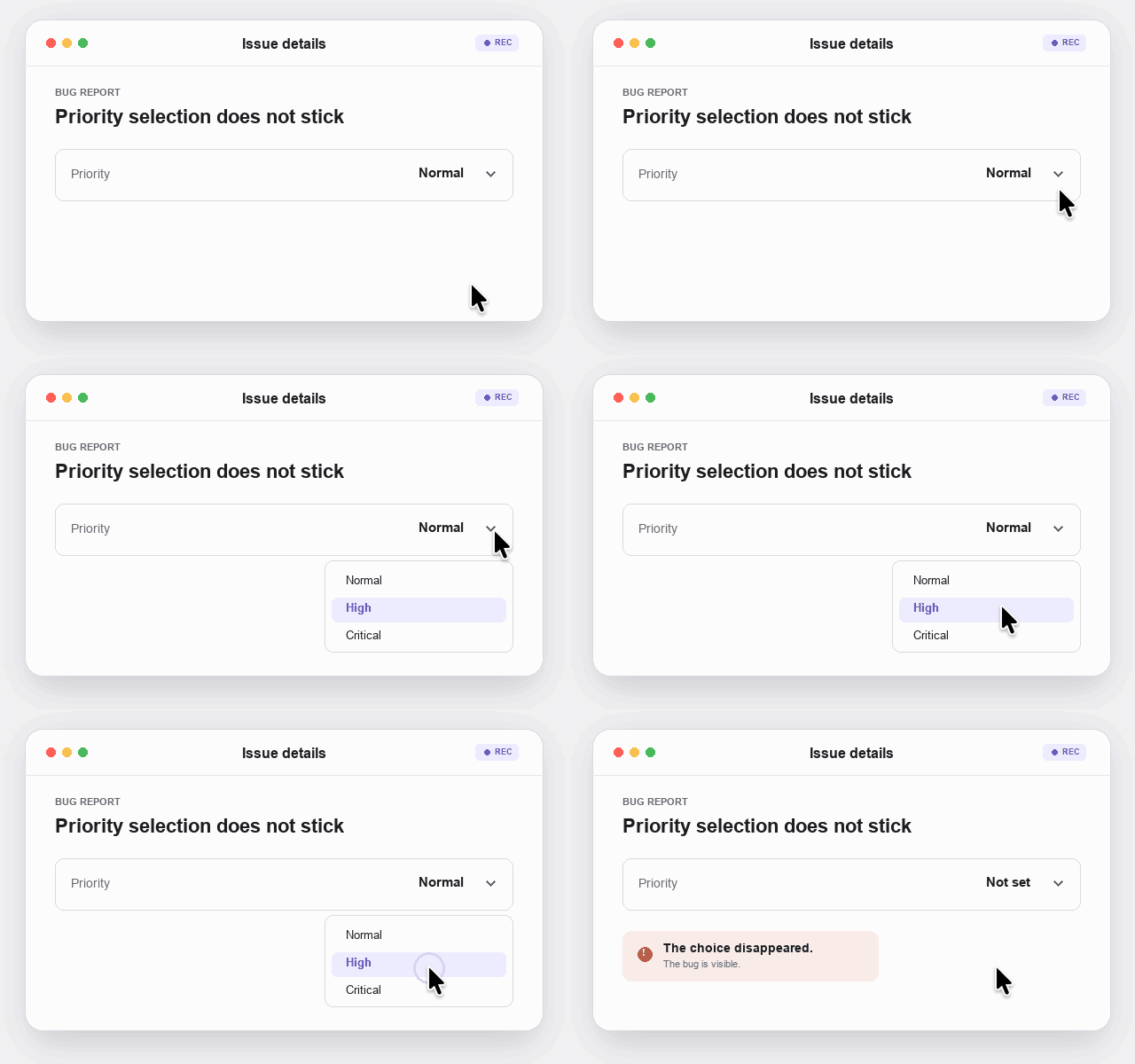
See the finished result
Sources
- GitHub: Attach filesGitHub documents GIF support, attachment methods, file limits, and visibility.
- GitHub: Issues quickstartGitHub recommends clear reproduction steps, expected results, and actual results.
- GifJot on GitHubSee GifJot's current capture and copy workflow.